
Connecting your iPhone to a TV can change the way you watch videos, show photos, or even share presentations. But if you’ve never done it before, it might seem a bit tricky. The good news is, whether your TV is a smart one or not, there are simple methods to get your iPhone screen up on the big display. This guide walks you through three straightforward ways—wireless or wired—that will work with most TVs.
Why Connect Your iPhone to a TV?
Before diving into the “how,” it’s worth understanding why so many people want to mirror their iPhones. Watching a movie or a show on a small phone screen just isn’t the same. You can also use this setup for family photo albums, video calls, or even gaming. Plus, if you’re doing a work presentation, it’s often easier to cast your slides directly from your phone.
You don’t need fancy gear or technical know-how. Just a bit of patience and the right method for your equipment will do the trick.
Use AirPlay for Wireless Mirroring (Ideal for Apple-Friendly TVs)
If your TV supports AirPlay—or if you have an Apple TV device connected—this is usually the smoothest way to mirror your iPhone screen. AirPlay is Apple’s own wireless streaming technology. It lets you send video, audio, and even your whole screen over Wi-Fi.
How to use AirPlay:
- Make sure your iPhone and TV are on the same Wi-Fi network.
- On your iPhone, swipe down from the upper-right corner to open Control Center.
- Tap the “Screen Mirroring” button.
- Select your TV from the list.
Your iPhone screen should appear on the TV almost instantly. This method is fast and doesn’t require any cables. The only catch is your TV must support AirPlay (many newer smart TVs do). If your TV doesn’t have it built-in, a small Apple TV box plugs into your TV and gives you that functionality.
Use a Third-Party App for More TV Options
Not every TV has AirPlay built-in, especially older or less popular brands. This is where third-party apps come into play. These apps use your Wi-Fi network to connect your iPhone and TV, allowing you to cast your screen wirelessly.
Some popular apps include TV Cast, ApowerMirror, and LetsView. Each works a bit differently, but most follow this pattern:
- Install the app on both your iPhone and your smart TV (or on a streaming device connected to your TV).
- Connect both devices to the same Wi-Fi network.
- Launch the app on both devices, then follow the on-screen instructions to pair them.
Apps like these are a good option when your TV doesn’t support AirPlay natively but can run apps or has a streaming device like Roku or Fire TV.
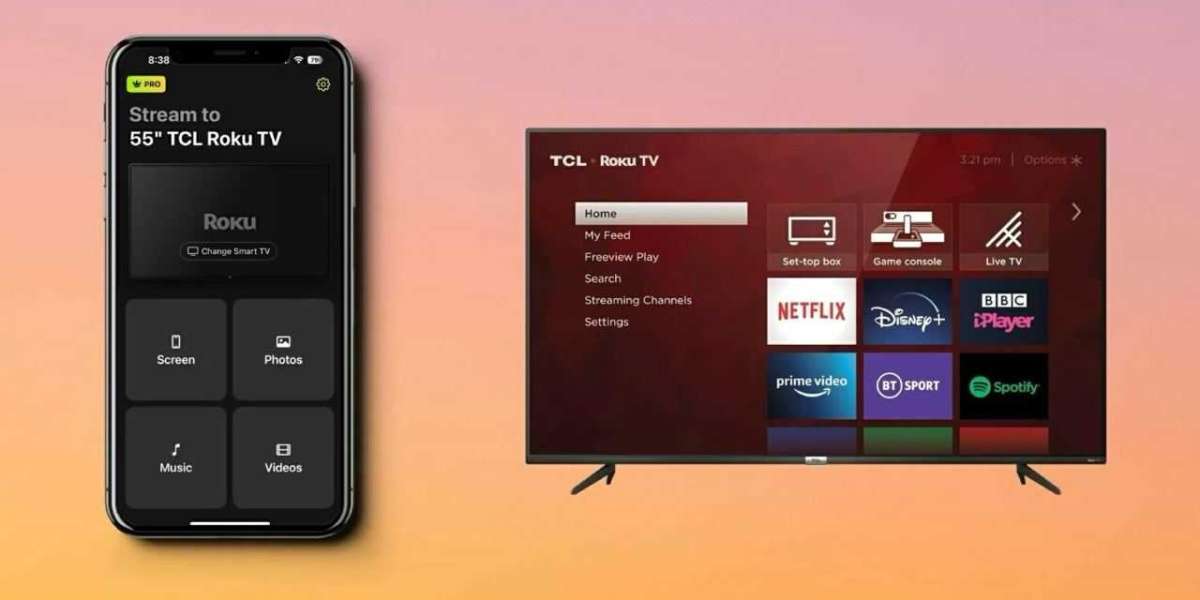
If you want to Mirror iPhone to TCL TV, for example, many third-party apps can help you bridge the gap without needing extra hardware. TCL TVs generally support AirPlay on their newer models, but if yours doesn’t, an app is a great backup.
Keep in mind, though, that the quality and speed can depend heavily on your Wi-Fi strength. Sometimes, there might be a slight delay or lower video quality.
Use an HDMI Cable and Adapter for a Wired Connection
When wireless options aren’t working or if you want a more reliable connection, the wired method is your best bet. Connecting your iPhone to a TV with an HDMI cable gives you stable video and audio without worrying about network issues.
Here’s what you’ll need:
- A Lightning to HDMI adapter (also called a Lightning Digital AV Adapter)
- An HDMI cable
- A TV with an available HDMI port
How to connect:
- Plug the Lightning end of the adapter into your iPhone.
- Connect the HDMI cable to the adapter and the TV.
- Turn on your TV and select the HDMI input you connected to.
- Your iPhone screen will appear on the TV immediately.
This method works with any TV that has HDMI, including older, non-smart models. Plus, there’s no delay or buffering because the connection is direct. It’s perfect if you’re in a place with unreliable Wi-Fi or want to stream something without interruption.
The only downside is carrying a few extra cables and adapters, but for many people, the solid connection is worth it.
Troubleshooting Tips to Keep Things Running Smoothly
Sometimes things don’t work perfectly right away. Here are a few quick fixes to try if your iPhone won’t mirror to your TV:
- Check Wi-Fi: Both devices must be on the same network for AirPlay or apps to work.
- Restart devices: A quick reboot can fix many connection issues.
- Update software: Make sure your iPhone and TV apps are up to date.
- HDMI input: When using cables, double-check that your TV is set to the right HDMI input.
- Reduce interference: Wireless connections can slow down if there’s too much traffic on your network or interference from other devices.
Final Thoughts: Pick the Method That Fits Your Setup
Whether you want a wireless solution like AirPlay, a third-party app, or a direct cable connection, each method has its place. AirPlay is great if your TV supports it. Third-party apps fill the gap for TVs without native support. And cables provide the most reliable link, especially in tricky network environments.
Try what works best with your devices. Once it’s set up, connecting your iPhone to a TV becomes quick and easy. You’ll wonder how you ever watched anything without it.